
Set up a proxy chain in Clash or Shadowrocket
Use a node that already connects to reach your GetIPProxy SOCKS5 proxy. The existing node connects first; the GetIPProxy proxy is the exit websites see. Choose your app for steps you can follow on screen.
Which app do you use?
Clash guides use an edited YAML file. Shadowrocket lets you add the SOCKS5 proxy in the app.
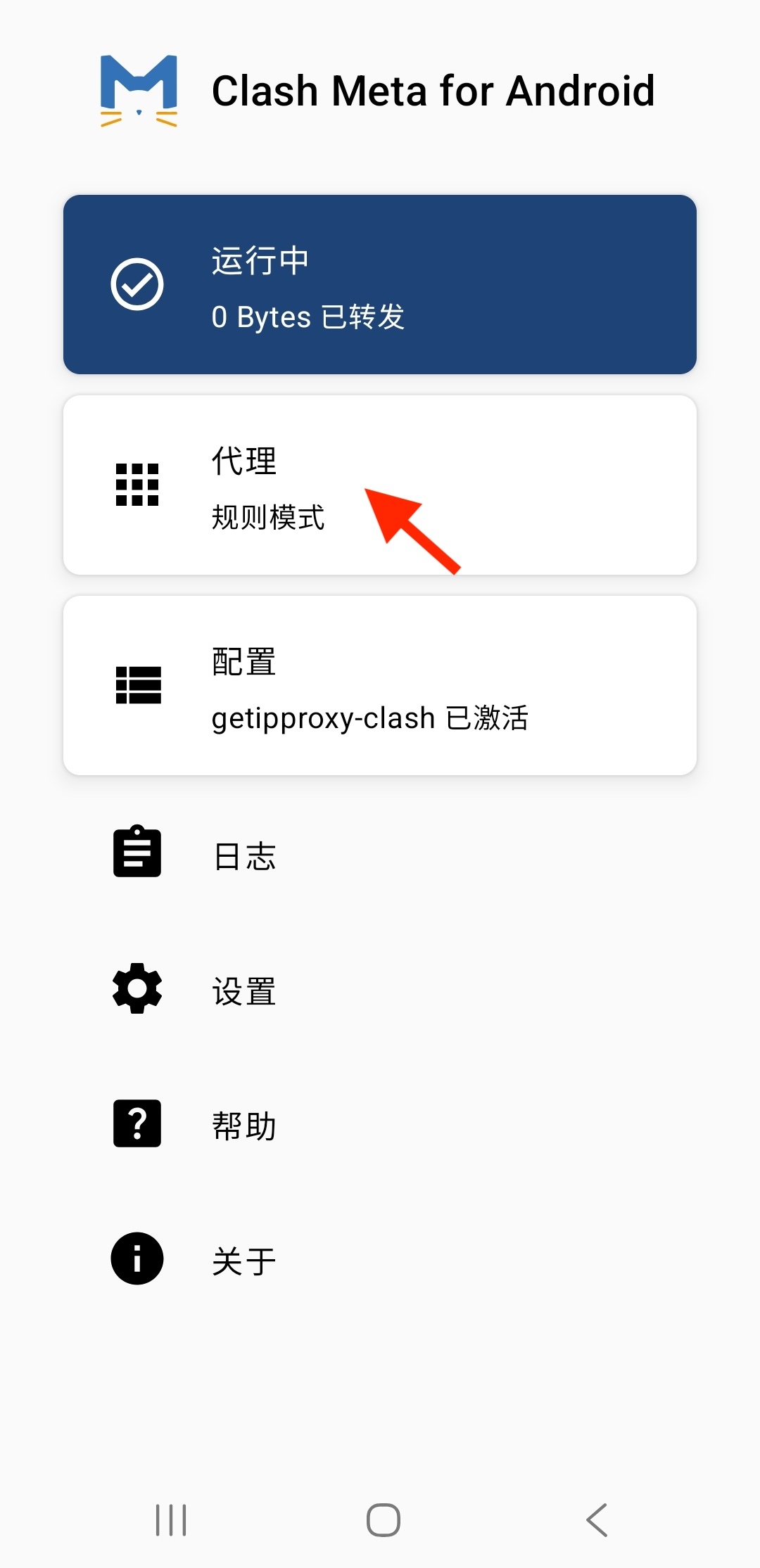
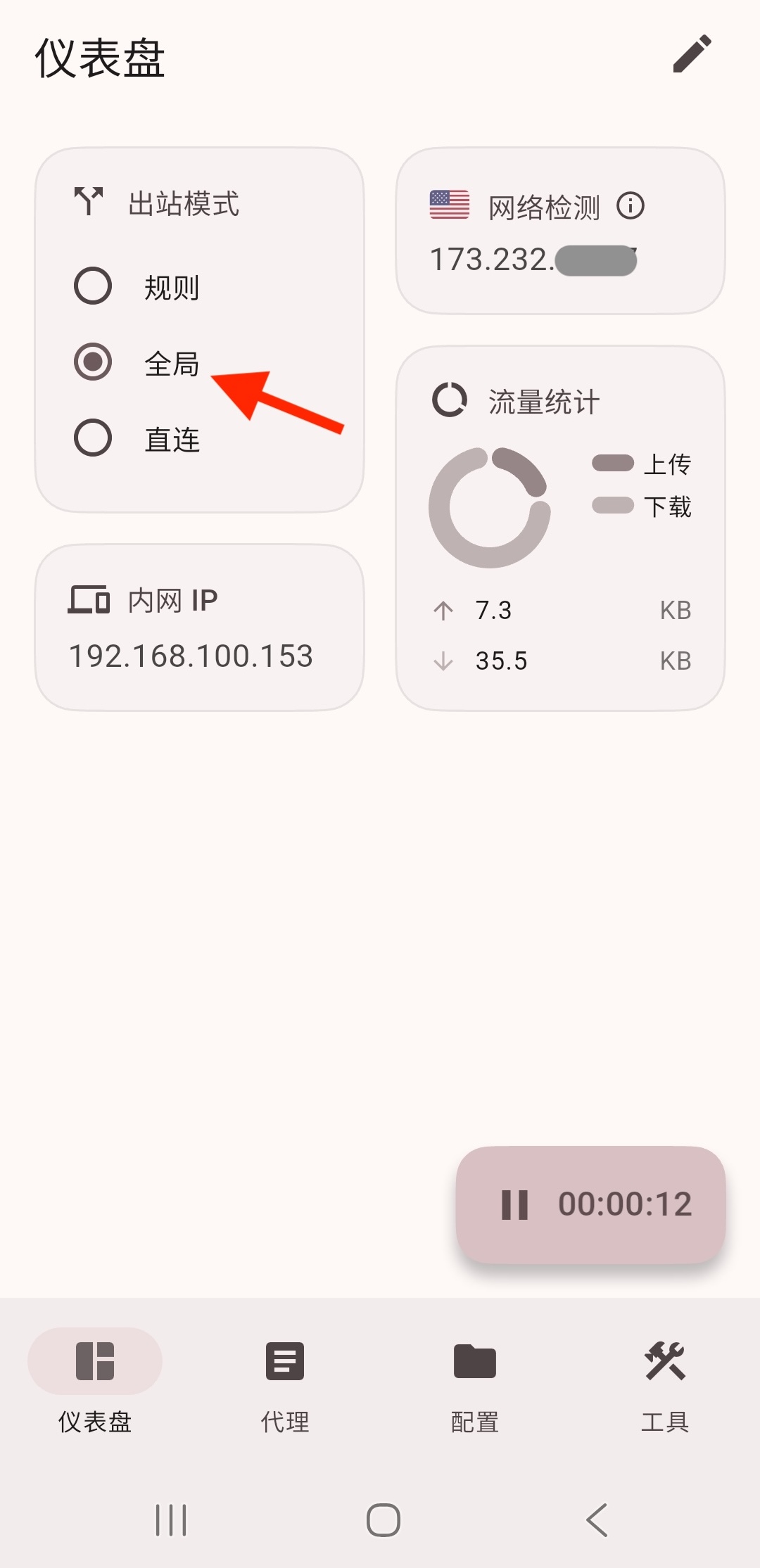
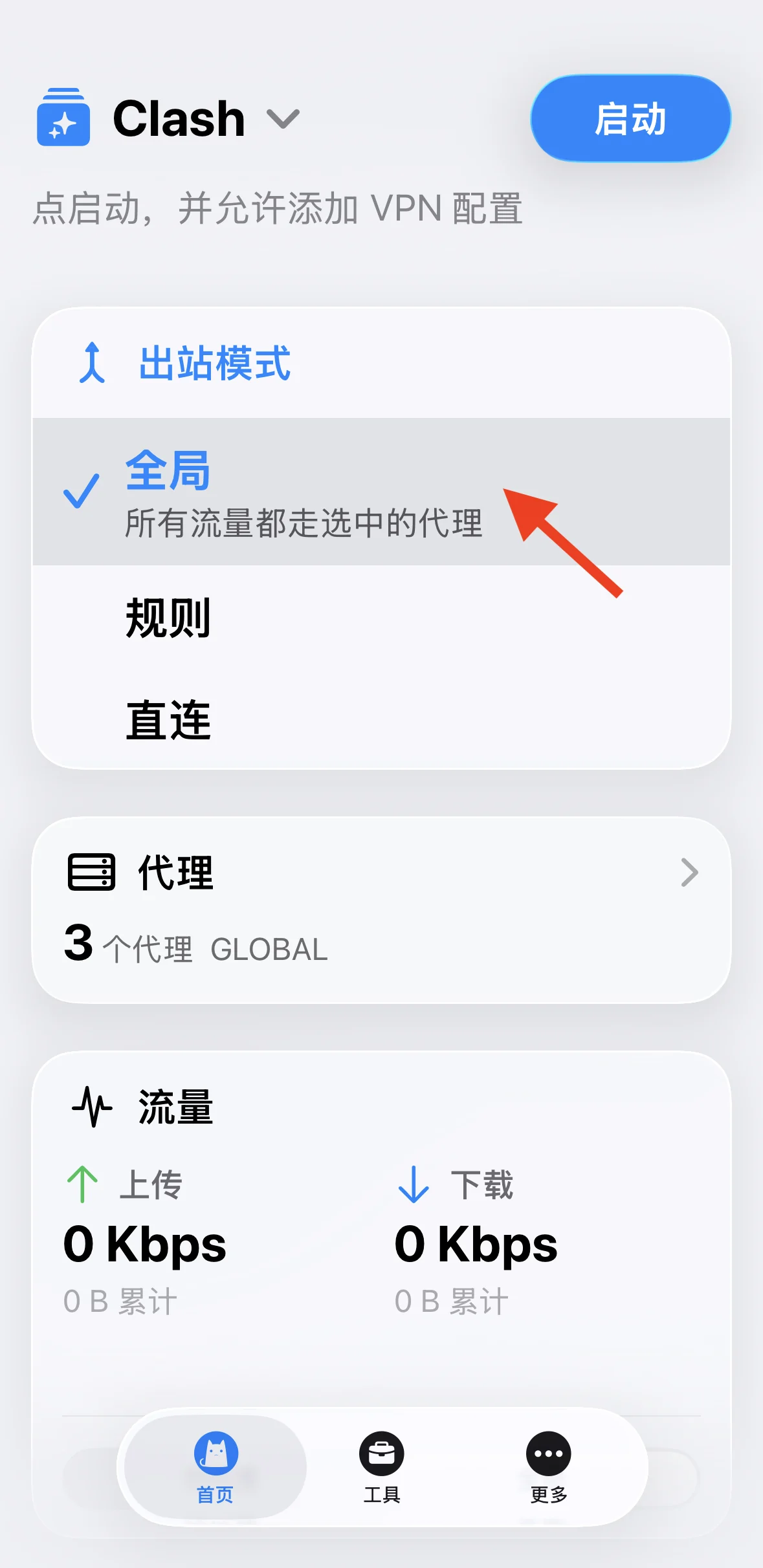
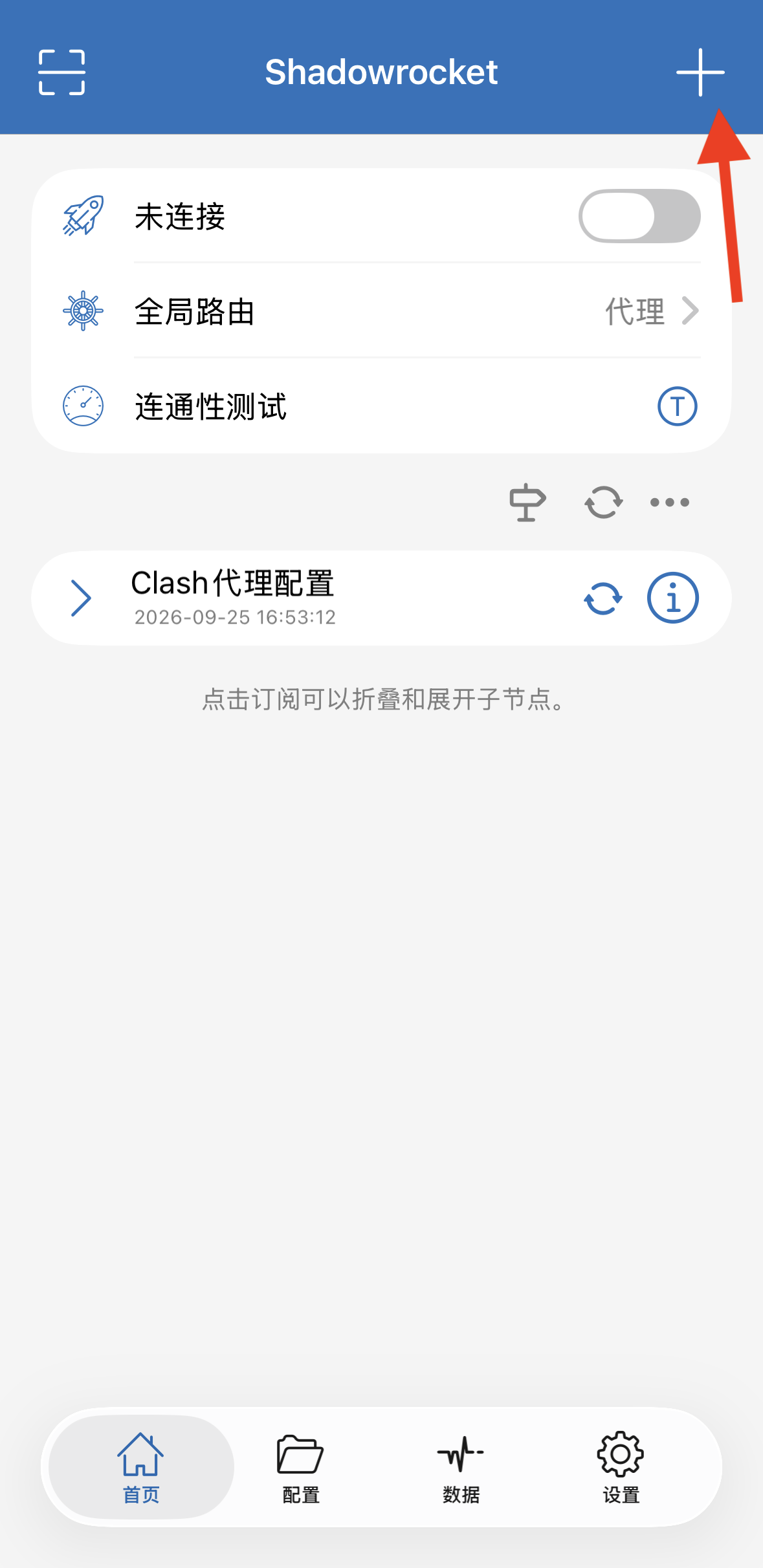
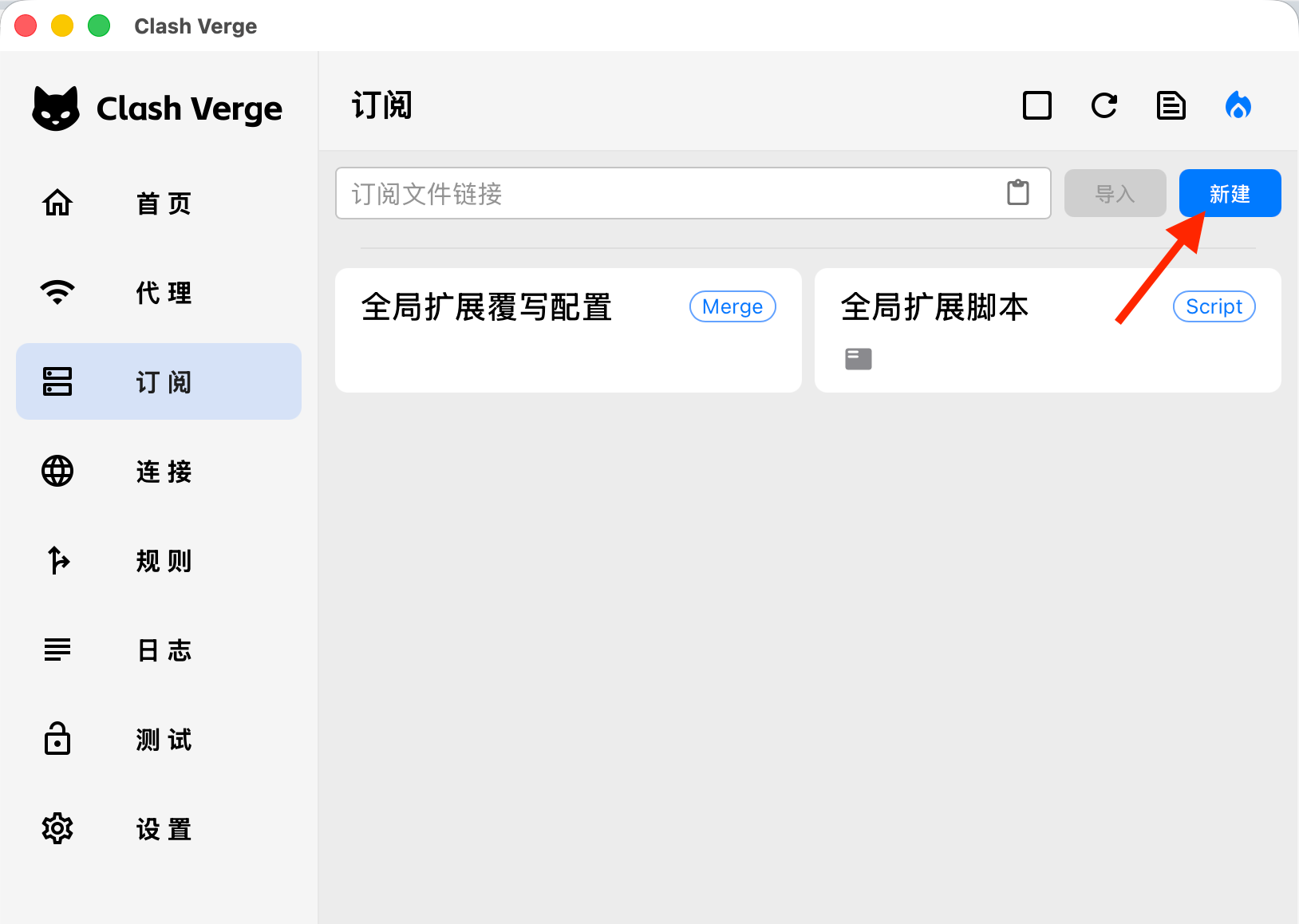
Android Clash Meta Edit YAML, then select the chain in Clash Meta. View guide Android FlClash Edit YAML, then select the chain in FlClash. View guide iPhone and iPad Clash App Load the YAML in the Clash app on iPhone or iPad, select the chain, and connect. View guide iPhone and iPad Shadowrocket Add a SOCKS5 node in Shadowrocket on iPhone or iPad and choose a working first-hop node. View guide Desktop Clash Verge Edit and import YAML, then enable the system proxy. View guide
Before you start
Have a working node and your GetIPProxy SOCKS5 address, port, username, and password ready. Clash guides also need an editable YAML file.
Verify the exit IP
After connecting, check your public IP on an IP lookup site. It should match the IP shown in Dashboard → My Proxies.