
On this page
- 1
Find the matching proxy details in My Proxies
Sign in to Dashboard → My Proxies. Find the proxy you want to use and click Switch format under Proxy parameters to view its HTTP or SOCKS5 connection details. Note the connection address, port, username, password, and the IP address for the final check. Use your own values, not the masked example below.

Example only: the values are masked. Use Switch format to view the connection details in the format you need. Open the full-size Dashboard example Use the connection address and port for the protocol selected in the browser. Keep the IP address shown in My Proxies to compare with the browser’s exit IP after setup.
Keep proxy credentials private. Do not share a screenshot with your real username or password.
- 2
Add a browser profile
Go to Browsers and click Add.
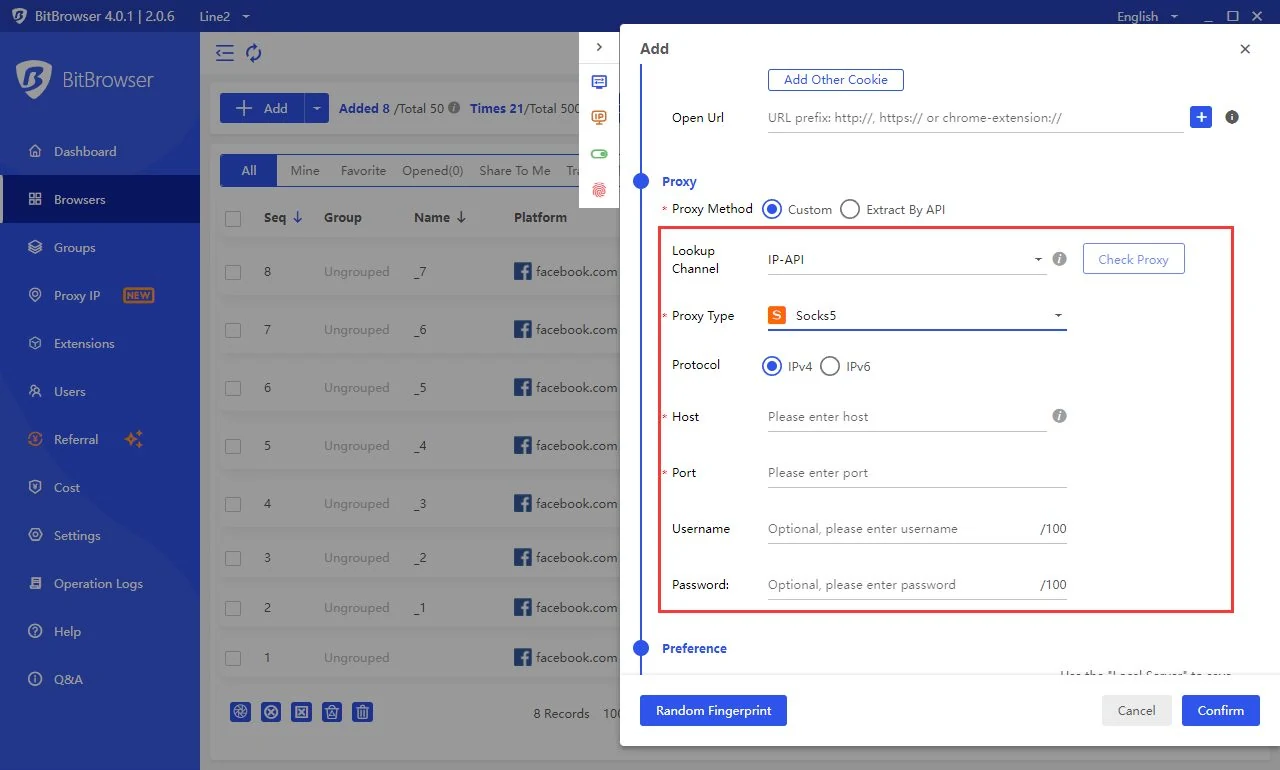
Official BitBrowser interface example. Use your own proxy details. Open the full-size browser screenshot · Official image source - 3
Choose a custom HTTP or SOCKS5 proxy
Select Custom Proxy Method, then choose HTTP or Socks5 to match the Dashboard format.
- 4
Fill the four proxy fields
Enter the selected format’s address in Host and its port in Port. Enter username and password separately; do not add a protocol prefix to Host.
- Host
- Host
- Port
- Port
- Username
- Proxy Account
- Password
- Proxy Password
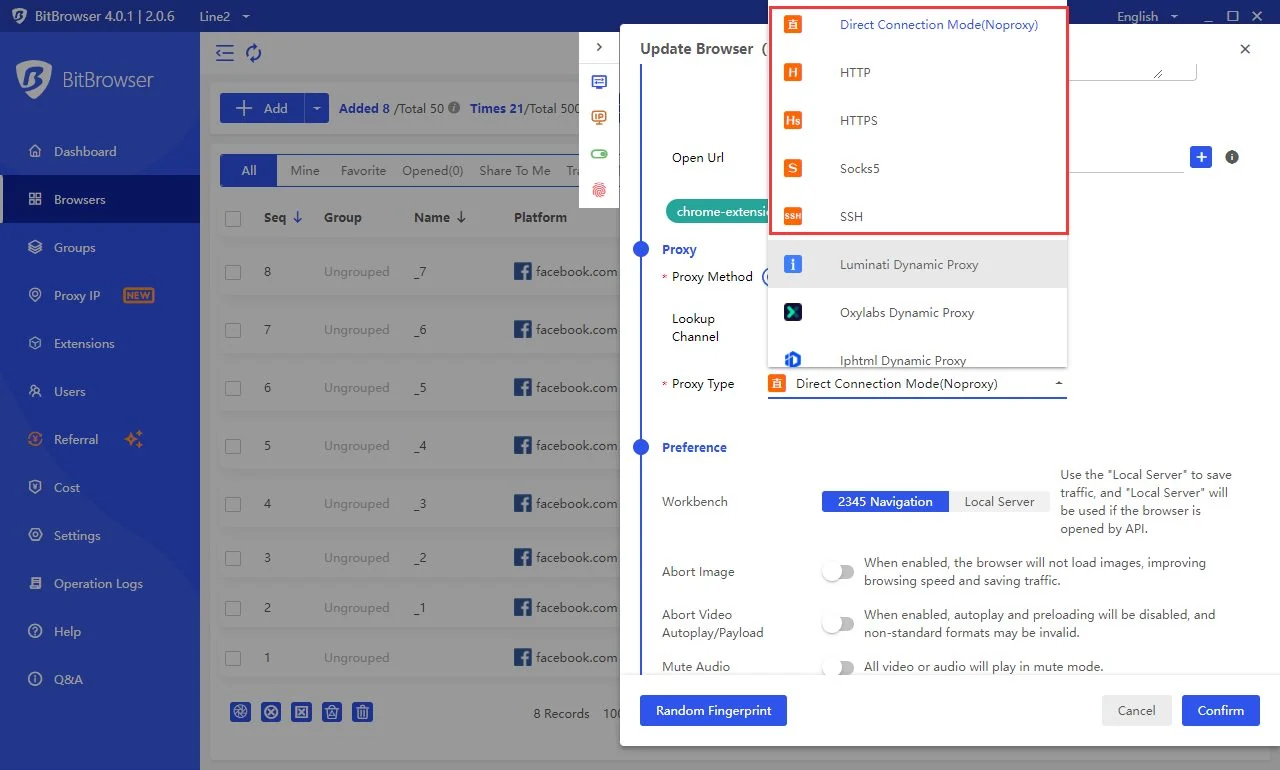
Official BitBrowser interface example. Use your own proxy details. Open the full-size browser screenshot · Official image source - 5
Check the proxy
Run the proxy check and wait for a passing result.
- 6
Save the profile
After the check passes, save this browser profile.
- 7
Open and verify the profile
Open the profile you just saved and compare its exit IP with My Proxies on an IP-check site.
In the profile you just opened, enter this address to see its public IP: api.ipify.org
Troubleshooting
If BitBrowser rejects the format, remove any protocol prefix from Host and put the port in Port rather than combining the two.
Check the browser’s current interface
Reviewed against the official browser documentation on the date shown above. The connection has not been tested in the browser app; controls may differ by version.
- Official websiteBitBrowser official website
- Official setup documentationBitBrowser proxy setup documentation